Create Beautiful Code Screenshots: A Free Carbon Alternative
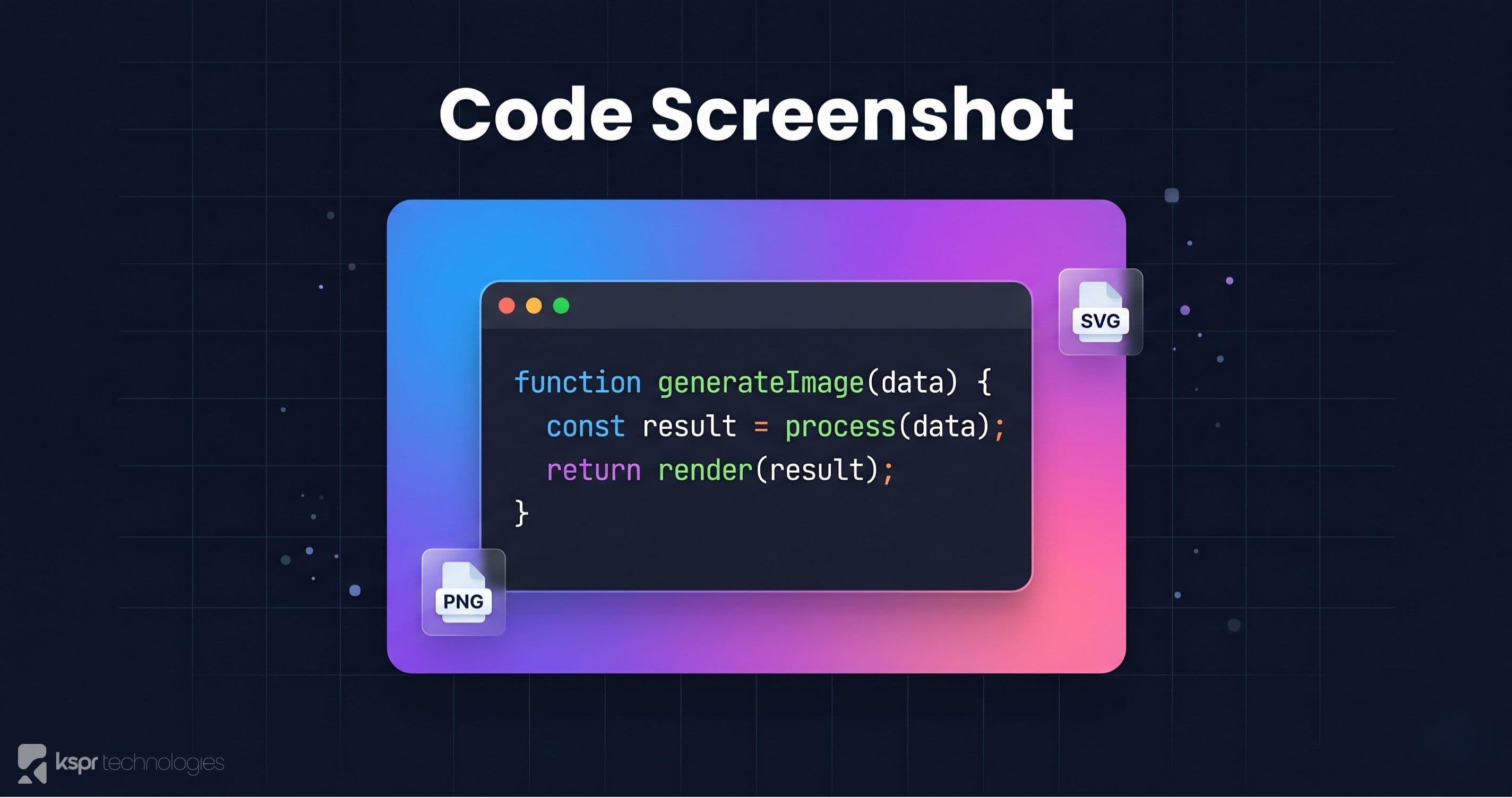
Sharing code on social media, in presentations, or in documentation is a daily task for developers. Plain text looks terrible: you lose syntax highlighting, structure, and visual appeal. Tools like Carbon popularized the idea of turning code into beautiful images, but they upload your code to a server. Our Code Screenshot generator does everything locally in your browser. No upload, no signup, no account.
Why Share Code as Images?
Code screenshots are used across many fields:
- Social media: platforms like Twitter/X, LinkedIn, and Bluesky strip code formatting. An image preserves highlighting and readability.
- Blog posts & tutorials: inline code blocks work for short snippets, but a styled screenshot stands out in a visual feed.
- Presentations & pitch decks: pasting code into Keynote or PowerPoint never looks right. A PNG screenshot keeps formatting perfect.
- Education & training: teachers and course creators use code images in slides, worksheets, and learning platforms.
- Documentation & wikis: when you need a static, polished version of a code sample that won't be affected by theme or font changes.
- Team communication: for sharing snippets in Discord, Slack, or email where code blocks have limited formatting.
Features
16 Syntax Themes
Choose from 16 carefully curated themes including popular options like Dracula, One Dark Pro, GitHub Dark, Monokai, Nord, Solarized, and more. Each theme provides accurate, language-aware syntax highlighting powered by Shiki, the same engine used by VS Code.
30+ Language Support
The highlighter supports over 30 programming languages including JavaScript, TypeScript, Python, Rust, Go, Java, C++, Ruby, PHP, Swift, Kotlin, SQL, HTML, CSS, Bash, and more. Language detection is automatic, or you can manually select the language for edge cases.
8 Gradient Backgrounds
Wrap your code in a visually striking gradient background. Choose from 8 preset gradients ranging from subtle blues and purples to vibrant sunset tones. The background adds visual depth and makes the screenshot pop in a social media feed.
macOS Window Chrome
Toggle the classic macOS window title bar with red, yellow, and green dots. This gives your screenshot the familiar “editor window” look that developers recognize. You can turn it off for a cleaner, minimal appearance.
Line Numbers
Show or hide line numbers depending on context. Line numbers are useful for referencing specific lines in a tutorial; hide them for cleaner social media posts.
Custom Padding & Font Size
Adjust the padding around your code and the font size to get the exact look you want. More padding creates a spacious, magazine-style layout; less padding is compact and efficient.
Export Options
- PNG is a high-resolution raster image. Best for social media, chat, and presentations. Exported at 2x resolution for Retina displays.
- SVG is a scalable vector format. Perfect for documentation, blogs, and print. Scales to any size without quality loss.
How It Compares to Carbon & Ray.so
Carbon (carbon.now.sh) is the most well-known code screenshot tool. Ray.so by Raycast is another popular option. Here's how our tool differs:
- Privacy: Carbon and Ray.so process your code on their servers. Our tool is 100% client-side. Your code never leaves your browser.
- Speed: no server round-trip means instant preview updates as you type or change settings.
- SVG export: many tools only offer PNG. We offer both PNG and SVG.
- No account: no signup, no login, no API key. Just open and use.
- Shiki-powered: the same syntax highlighting engine as VS Code, producing more accurate results than older highlighters.
Tips for Great Code Screenshots
- Keep snippets short. 5-25 lines is ideal. Long code dumps lose the reader.
- Remove unnecessary code. Strip imports and boilerplate. Show only the interesting part.
- Pick a theme that contrasts with your background. If posting on Twitter (white background), a dark theme pops. For dark mode sites, lighter themes stand out.
- Use the right language. Auto-detection is good but not perfect. Manually selecting the language ensures accurate highlighting.
- Add context in the caption. The screenshot shows the code; use the post text to explain what it does and why it matters.
Create Your First Screenshot
Open the Code Screenshot tool, paste your code, pick a theme and background, and export. It takes seconds and the result looks professional. Free, private, and no signup required.